Avron
English EN

The moment it shows

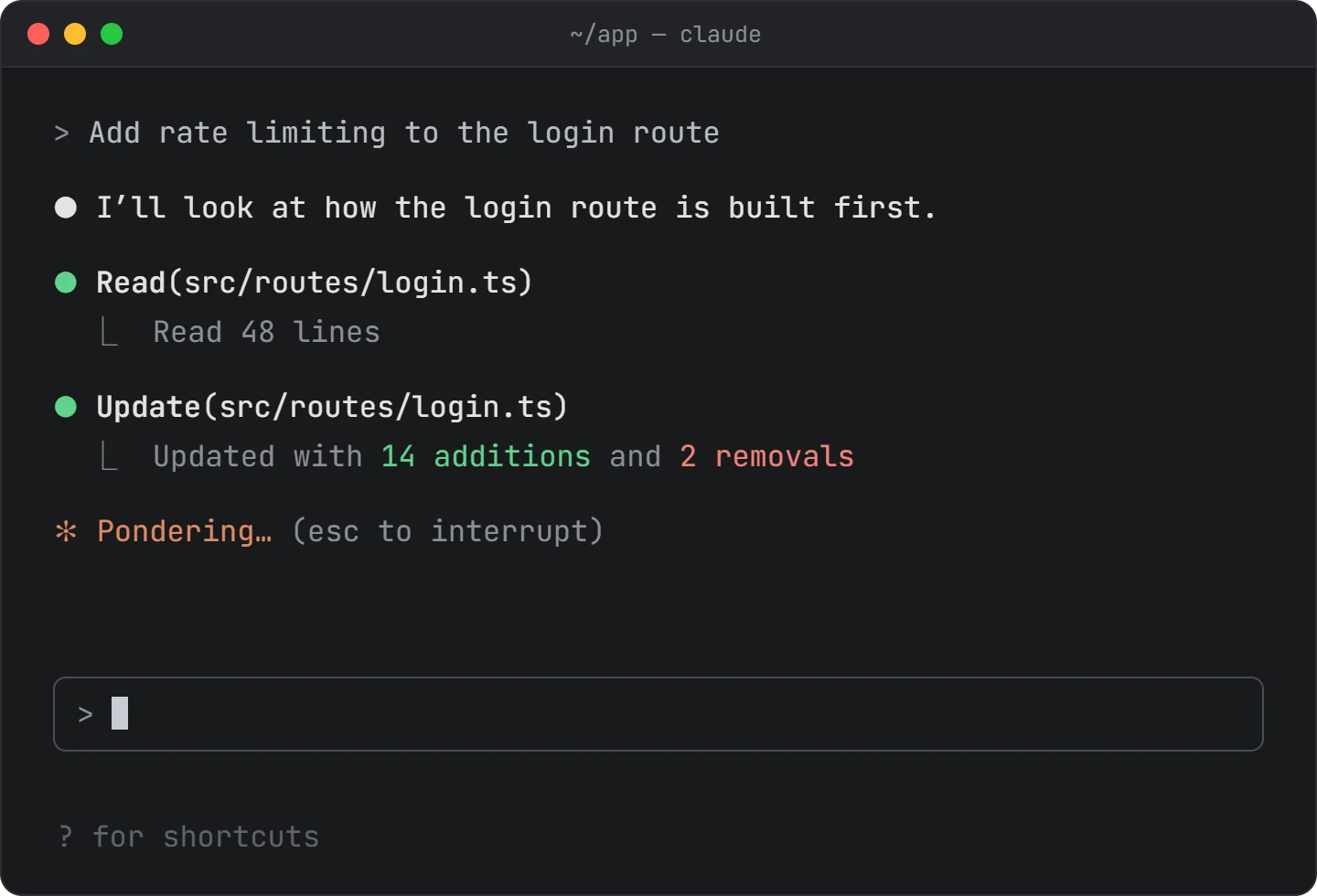
The developer has handed a task to the agent and is waiting, eyes on the screen.

  1. 0 s

    Thinking starts

    The developer sends a request and the agent starts to think.

  2. 1.5 s

    The sponsor appears

    Quick answers get nothing; after 1.5 s the line shows.

  3. 5 s

    One impression

    Every 5 s your line is on screen counts as one impression. Lines up at the same moment on several screens count once.

  4. Done

    Cleared

    It disappears when the answer comes and never stays in the history.

Put your line on screen now

Type it in and see it the way developers will, in the terminal while their agent works. A long line is shortened the same way the real status line does it. Nothing is charged here.

Package

US$112

60,000 valid impressions within 30 days

about US$1.9 per 1,000, Charged in KRW

Order with this line
Your sponsor line in a Claude Code terminal while the agent works

Ad · NORTHWIND

NORTHWIND

Branch Postgres per PR in 1s

Postgres branches · $50 credit

Branch Postgres per PR in 1s

A full copy of your database for every pull request, ready in a second. New teams get $50 of credit.

Ad NORTHWIND │ Branch Postgres per PR in 1s · Claim $50 ↗

Ad · NORTHWIND

Branch Postgres per PR in 1s

NORTHWIND

Branch Postgres per PR in 1s

Postgres branches · $50 credit

A full copy of your database for every pull request, ready in a second. New teams get $50 of credit.

Open the sponsor link
NORTHWIND

Branch Postgres per PR in 1s

Postgres branches · $50 credit

Avron

Ad · NORTHWIND

Branch Postgres per PR in 1s

A full copy of your database for every pull request, ready in a second. New teams get $50 of credit.

Where it runs

The tools developers already use, through each tool’s official hooks, status line or plugin. Any model works the same way: Claude, GPT, Gemini or a local one. It shows only while the agent is thinking and is gone when it finishes, so it never gets in the way.

  • Shown
Tool Where the sponsor shows One lineCard (editor, Orca, Claude app)Desktop notification
Terminal
Claude Code Status line under the prompt
GitHub Copilot CLI Status line under the input box
Antigravity CLI Status line under the prompt
OpenCode Bottom row of the screen
Codex CLI The status bar of an editor or Orca with the same project open
Editor
VS Code + GitHub Copilot Editor status bar, card on hover
Cursor Editor status bar, card on hover
Antigravity IDE Editor status bar, card on hover
App
Orca Orca status bar, panel card on click
Claude desktop app Status line under the input; a card opens from a button (through a plugin)
Codex app Desktop notification (no status line in the app)

Terminal

  • Claude Code

    Status line under the prompt

    • One line
    • Desktop notification
  • GitHub Copilot CLI

    Status line under the input box

    • One line
    • Desktop notification
  • Antigravity CLI

    Status line under the prompt

    • One line
    • Desktop notification
  • OpenCode

    Bottom row of the screen

    • One line
    • Desktop notification
  • Codex CLI

    The status bar of an editor or Orca with the same project open

    • One line
    • Card (editor, Orca, Claude app)
    • Desktop notification

Editor

  • VS Code + GitHub Copilot

    Editor status bar, card on hover

    • One line
    • Card (editor, Orca, Claude app)
    • Desktop notification
  • Cursor

    Editor status bar, card on hover

    • One line
    • Card (editor, Orca, Claude app)
    • Desktop notification
  • Antigravity IDE

    Editor status bar, card on hover

    • One line
    • Card (editor, Orca, Claude app)
    • Desktop notification

App

  • Orca

    Orca status bar, panel card on click

    • One line
    • Card (editor, Orca, Claude app)
    • Desktop notification
  • Claude desktop app

    Status line under the input; a card opens from a button (through a plugin)

    • One line
    • Card (editor, Orca, Claude app)
    • Desktop notification
  • Codex app

    Desktop notification (no status line in the app)

    • Desktop notification

Inside Orca, every terminal tool above shows its sponsor too (Codex CLI in the Orca status bar, the others on their own line). Cards open from an editor or Orca status bar item, so the terminal tools have none. In an editor the line is drawn by the Avron extension: VS Code installs it from the Marketplace (Avron, publisher wbcode); Cursor and Antigravity IDE install it from Open VSX. Cursor shows it in its classic editor window, not in the separate Agents window. The Claude desktop app shows it through a small plugin that the installer adds with the claude command (checked on Windows so far); the Codex app has no place to draw, so it gets the notification.

Operating systems

Windows
Everything, notifications with the picture and logo
macOS
Everything; notifications are text only
Linux
Everything; notifications are text only

macOS is checked on GitHub’s macOS machines: the full test suite, a trial install of the released package, and a screenshot check of the editor extension.

How we keep impressions honest

The first question a sponsor asks is whether an impression is real. These five rules apply to every one.

  • 5 s

    One per 5 s

    Every 5 s your line is on screen counts as one impression. A turn that showed it for less is dropped without a record.

  • 1

    One sponsor per turn

    The line is never swapped mid-turn. In tools that report a stop it stays until the work ends (5 minutes at most); elsewhere, 15 seconds.

  • 15 s

    15 s apart

    Turns of the same person (all linked devices) closer than 15 s count once, and at most 300 turns and 3,000 impressions a day are recognised.

  • Signed

    Signed and verified

    Impression records are signed on the developer’s machine and verified again on the server. Edited records are rejected.

  • UTM

    Measured clicks

    Every link arrives tagged with UTM parameters, so clicks show up in your own analytics.

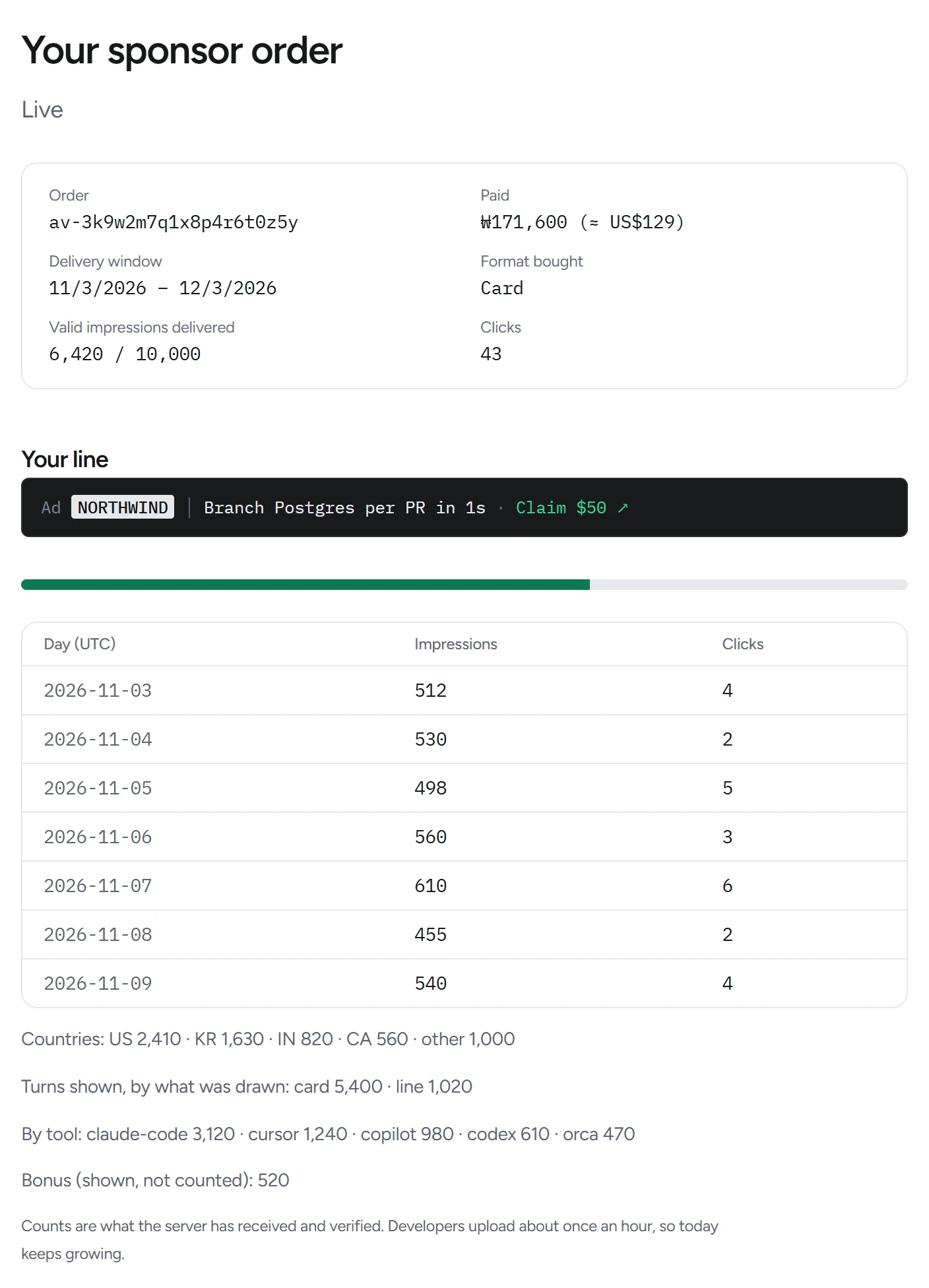
A sponsor order page: the line, delivery so far and impressions by day
The real order page, filled with an example order.

Then check delivery every day

Your order page shows the line, delivery so far, clicks and countries, day by day. It shows nothing about any one developer.

What am I charged for?

You pick a package (impressions and days) and a format (one line, or card). Every 5 seconds your format (or a bigger one) is on screen counts as one impression toward what you bought, at 2,500 KRW per 1,000. Other turns are shown in the report as a bonus.

What is the minimum budget, and how do I pay?

Trial is 4,000 impressions over 14 days for 10,000 KRW (about US$7.5), at 2,500 KRW per 1,000 impressions on every package. All charges are by card, billed in Korean won. Payment by international card is not open yet: email contact@avron.dev and we will tell you when it opens.

How are lines reviewed?

We read every line and the page it links to before it goes live. Plain text only: a short brand tag, one sentence, one button. No emoji, no sentences in all capitals, no claims we cannot check, nothing illegal, harmful or spam. A rejected line is refunded in full.

Can I get a refund?

Cancel any time before it goes live for a full refund. A rejected line, or a line not live within 60 days of payment, is refunded in full. If you stop it, you get back the share not delivered. If the window ends before all impressions are delivered, we extend it to deliver the rest, or refund the undelivered share if you would rather not wait. See the refund policy for the rest.

Can I choose which tools show it?

Yes, with Standard or Growth in the Card format: pick the tools on the order form and the campaign is shown only in those. Reports by tool and by format are for Standard and up.

How do I see results?

Every link goes through avron.dev/go/ and arrives with UTM parameters, so clicks appear in your analytics. The status page shows counted impressions, and Standard and Growth add a report by tool and format.

Read the full refund policy

From 10,000 KRW (about US$7.5) for 4,000 valid impressions.

Four packages, a daily report, and a full refund if your line does not go live within 60 days.

See plans